
Unfortunately, MS Excel doesn’t support CSV files in the same way as .xslx files. But I still able to open any CSV file with MS Excel.
On Windows
- Open MS Excel and create a new Blank Workbook
- Go to Data -> Get Data -> From File -> From Text/CSV
- Choose CSV file
- Set File Origin as “65001: Unicode (UTF-8)”:
- Set Delimiter as "Semicolon" and check that the data looks OK. If not, try setting Delimiter as "Comma" and check again:
- Once data looks good, click Load:
- Done:
On macOS
- Open MS Excel and create a new Blank Workbook
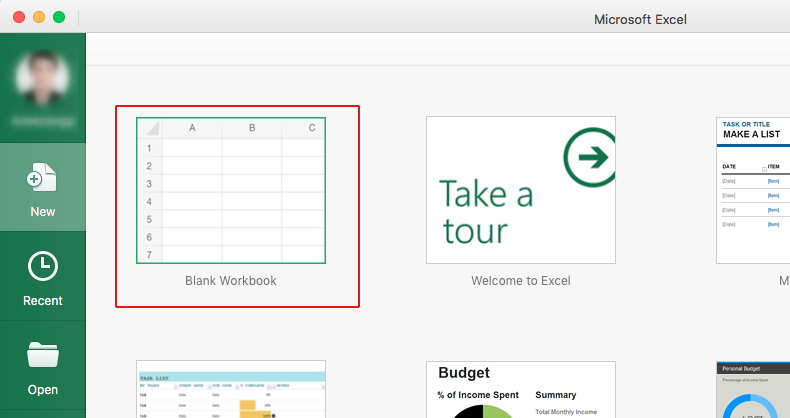
-
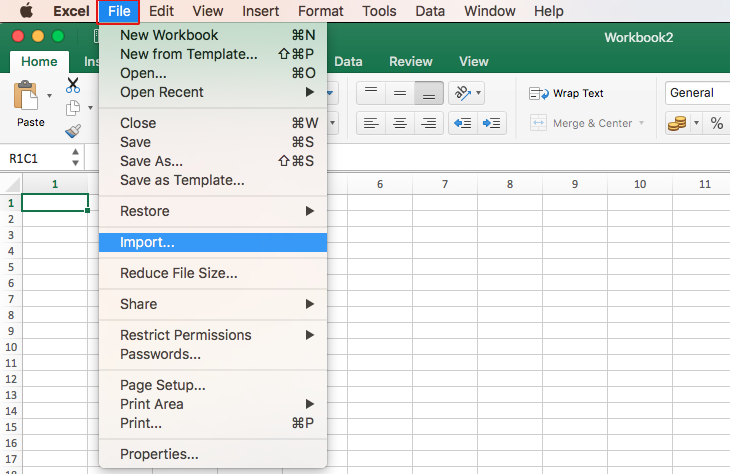
Choose “File” -> “Import”
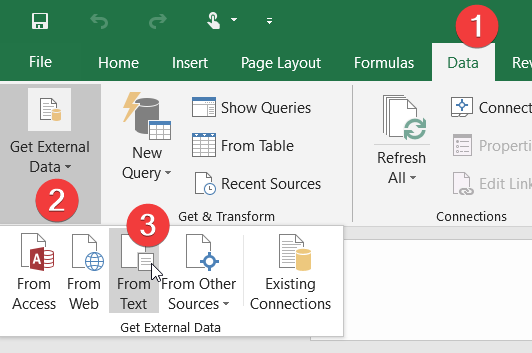
- For some versions of MS Excel you should go to Data -> Get External Data -> From Text
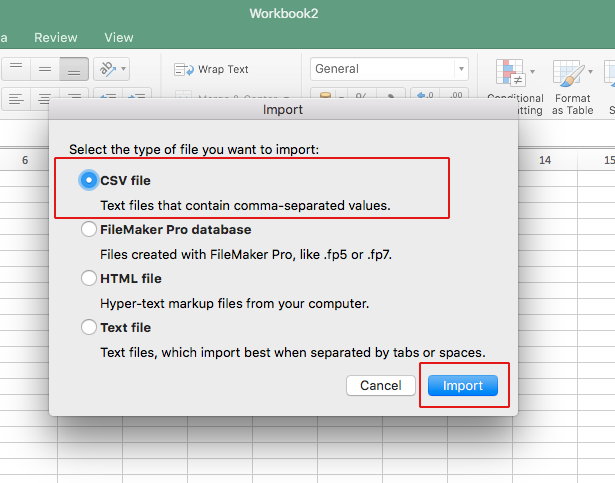
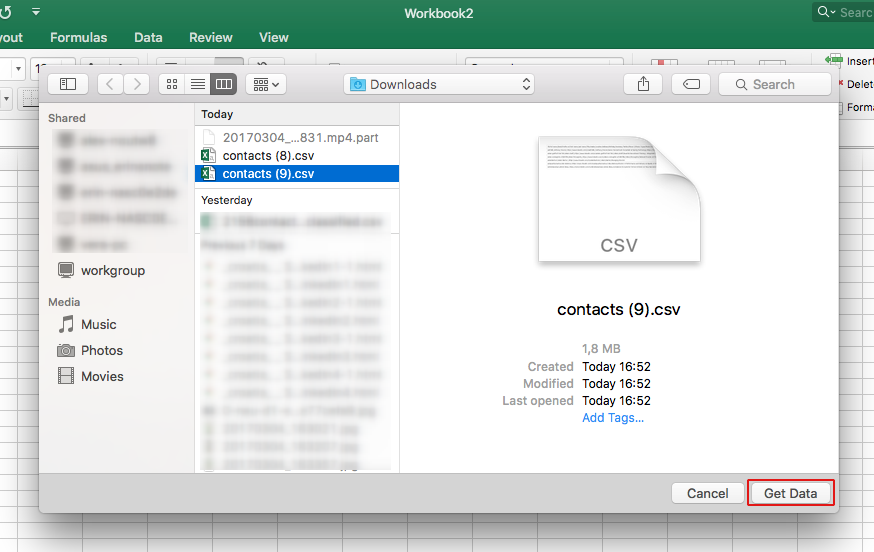
- Choose CSV file
- Choose your file
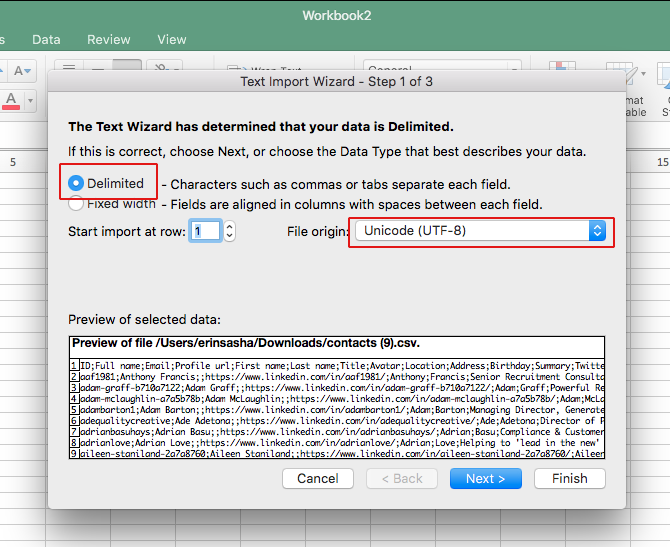
- Set “Delimited” & “Unicode (UTF-8)” as File origin
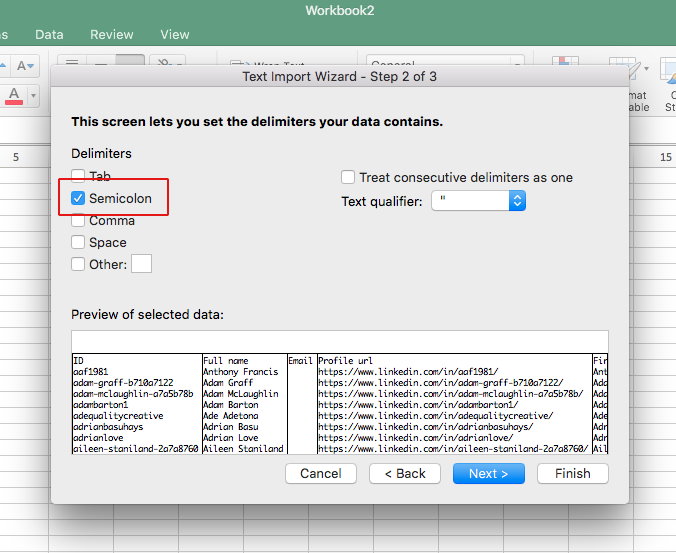
- Choose correct delimiter. If you exported file for MS excel, it should be Semicolon. For Google Sheet it will be Comma
- Choose General for Column data format
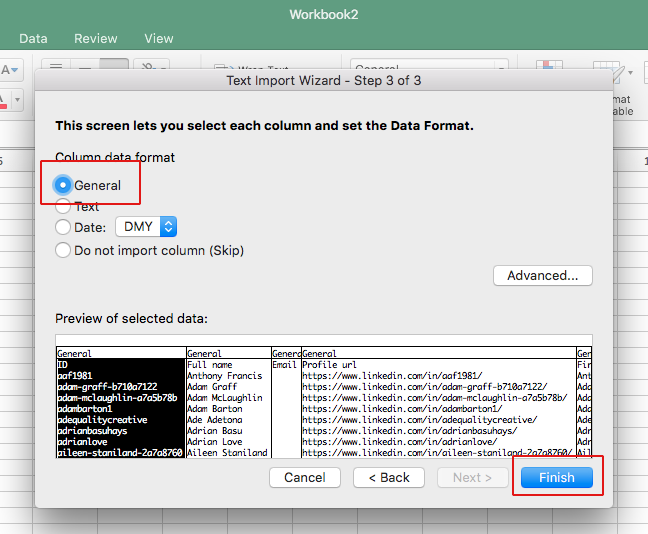
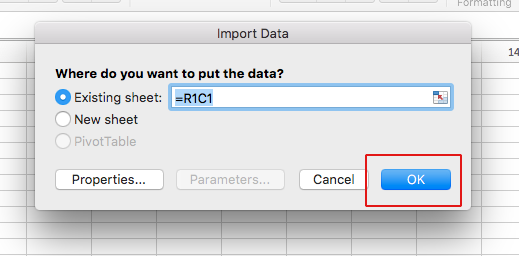
- Just click Ok button
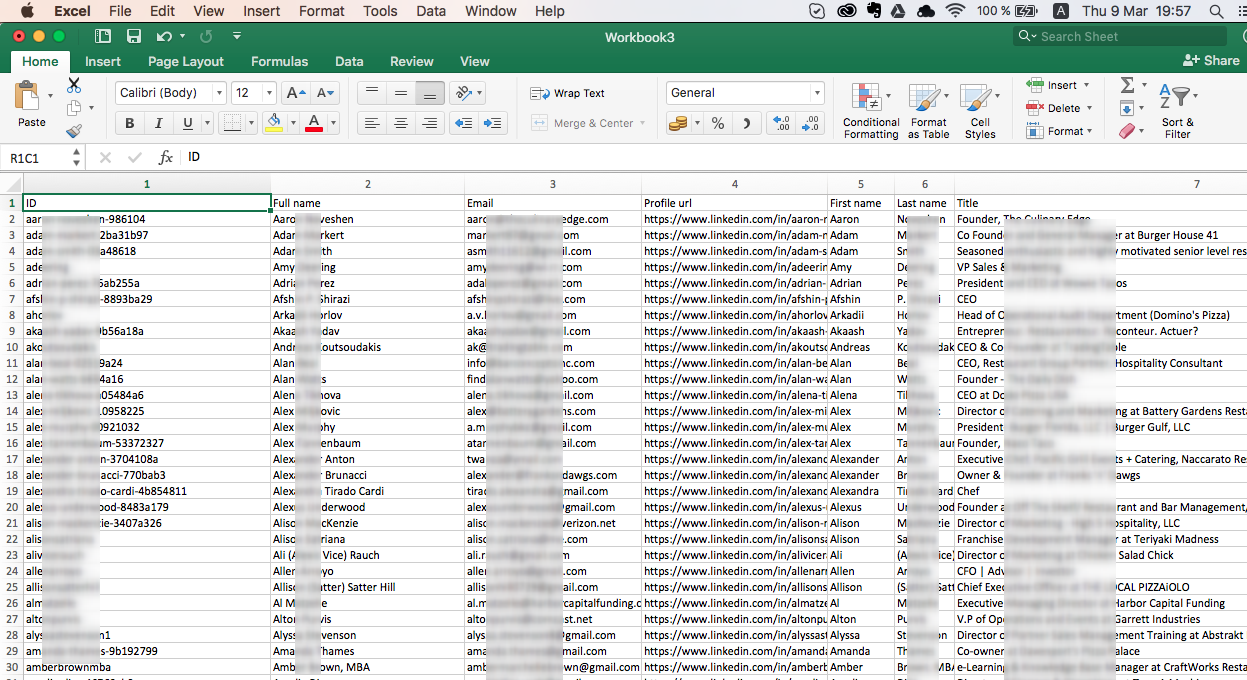
- Done:
Thank you very much for your attention. We hope that these tips helped you! Here are some more useful articles from our blog:
You can try the software for free during 14 days - download it and activate a free trial.
Official website Our blog YouTube Facebook Instagram WhatsApp Email: info@linkedhelper.com
Related features: